I have had to deal with a slow or non-existent internet service for years, until recently.
With a slow connection, some internet webpages can be taxing on your nerves, while watching some youtube videos can be insane to bother with.
Some webpages are so dependent upon other servers, for ad tracking and such things, that they fail to load, or prevent you from scrolling, because the other servers are busy.
I still use a crappy and expensive service at this point, and I have since made it standard operating procedure, to limit my bandwidth consumption requirements by utilizing certain freely available add-ons for my web browser, especially when it comes to youtube videos.
I do not watch youtube videos, or videos from other sites, while in my web browser. I download them first. Then I watch them offline, with a typical video player program. The reason I do it this way, is I can choose the file size and resolution quality of the video, which means less wait time and bandwidth consumption. If you desire to emulate this process, here are the programs and add-ons I use to achieve this. Scroll down to see some images of the youtube download options made available with these add-ons.
I use Firefox web browser, even though it has become bloated, because I need certain add-ons for specific purposes.
https://www.mozilla.org/en-US/firefox/new/
Here are a couple add-ons that I use to cut down the bandwidth consumption and annoyance factor:
Adblock plus - saves on the number of images downloaded, and pisses off websites that rely upon the ads for paying the bills. Yes, that doesn't help them, but if you can't afford to visit the page because you have exceeded your service providers limit for the month, what is the point?
https://addons.mozilla.org/en-US/firefox/addon/adblock-plus/?src=search
Flashblock - doesn't allow flash elements of webpages to operate until you click on them. Stops videos from playing when the page loads initially. Also stops flash based ads from playing until you click on them.
https://addons.mozilla.org/en-US/firefox/addon/flashblock/?src=search
Downthemall - a download manager, of which there are many to choose from, but this one works well for me and the other add-ons I am using. This is integral for the way I watch youtube videos.
https://addons.mozilla.org/en-US/firefox/addon/downthemall/?src=search
Youtube Video and Audio Downloader - This one is also integral and makes it easy to download specific resolutions of a particular video, or just the audio. Different resolutions imply different available file sizes of that video. Which helps reduce the bandwidth requirements of the internet connection you are using. The information in the video does not always require high resolution.
https://addons.mozilla.org/en-US/firefox/addon/youtube-video-and-audio-dow/?src=search
Video DownloadHelper - This is an alternative, and not as good as the above video downloader. It has its uses when the above is having a problem with videos from sites other than youtube.
https://addons.mozilla.org/en-US/firefox/addon/video-downloadhelper/?src=ss
I use a windows based operating system, so the video players I use, after the video has downloaded, are specific to that operating system,
Media Player Classic
https://mpc-hc.org/
VLC Media Player
http://www.videolan.org/vlc/
These play the downloaded videos easily.
Here are some screen shots,
In the browser, go to a chosen youtube video page, and when it loads, notice the additional "Download" selection below the video area.
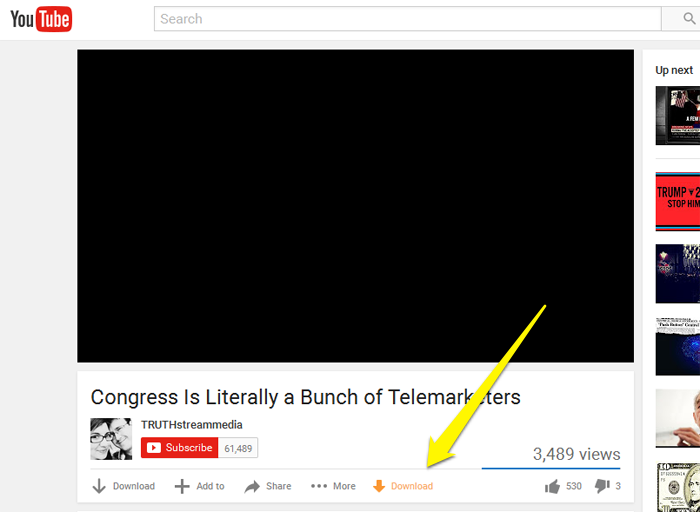
Moving your mouse over that,
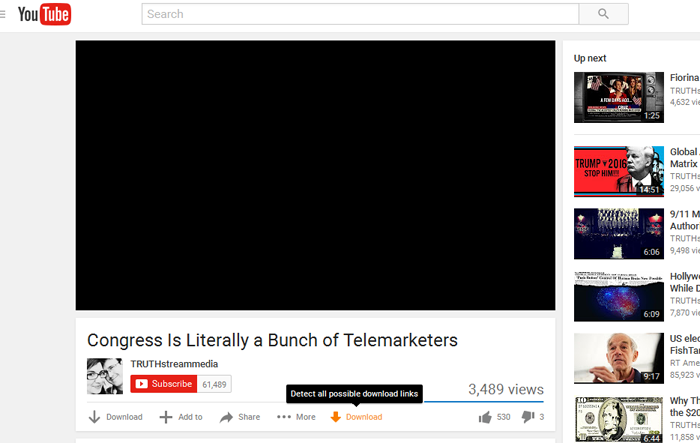
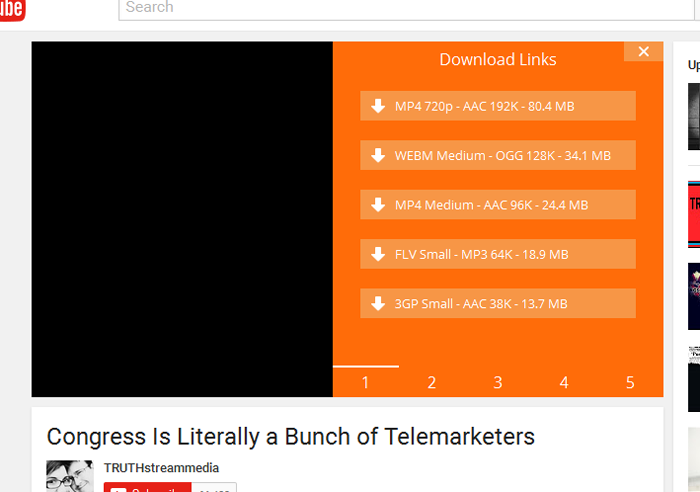
Clicking on "Download", results in several options for resolution,
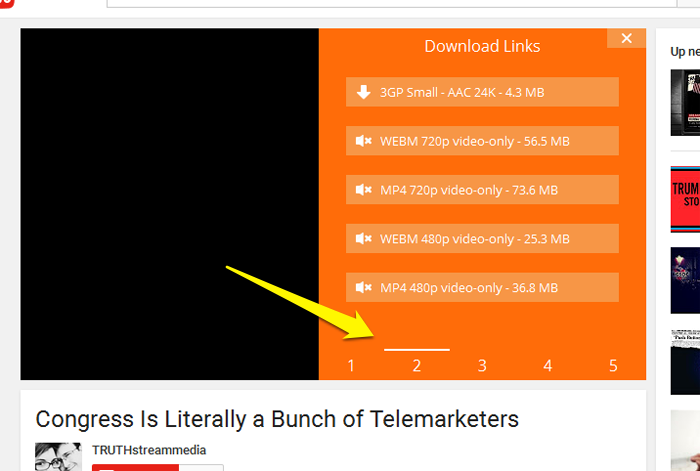
For this particular video, there are more options available, and I can tell because of the series of numbers at the bottom of the orange area, .. clicking on #2,
Clicking on #3,
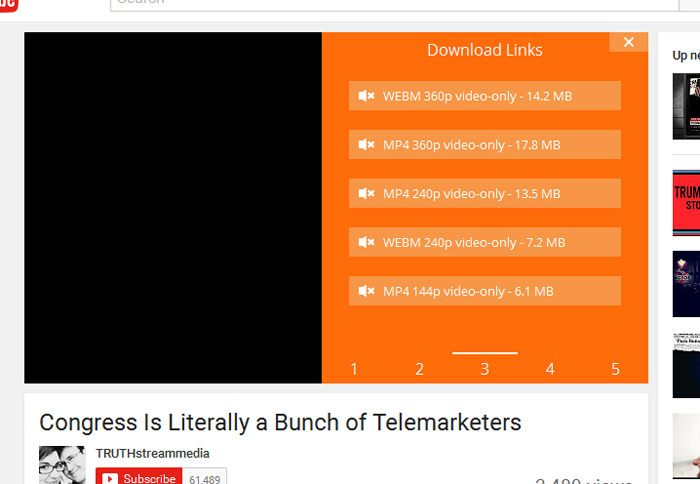
Clicking on #4,
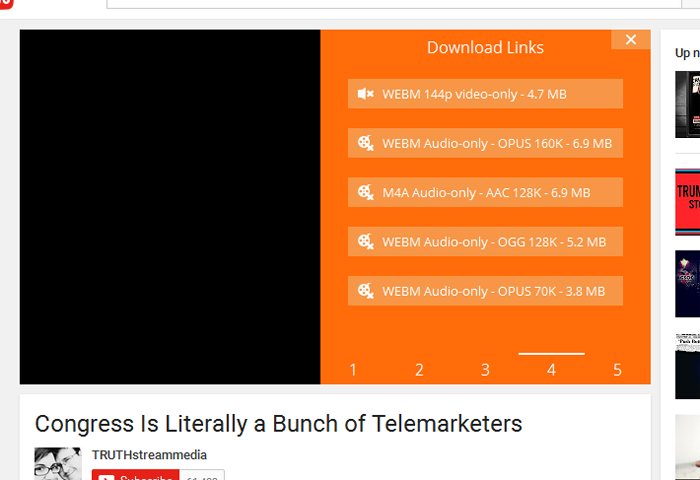
Clicking on #5,
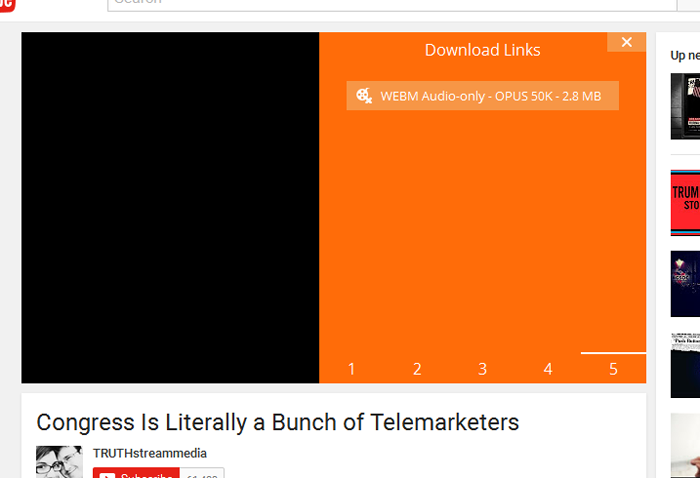
I noticed that there were selections available for video only (no sound), audio only (no video), and various resolution sizes for normal (audio & video). I chose to go back to #2, and select the "3GP Small - AAC 24K - 4.3 MB", because it was the smallest file size, that has both video and audio (regular). To choose that particular file size, I click on the little symbol next to the description (red arrow). The moment I do that the numbers at the bottom change to symbols that represent the various downloader add-ons that I have installed in Firefox. I select the "dTa! OneClick", which is part of the Downthemall add-on,
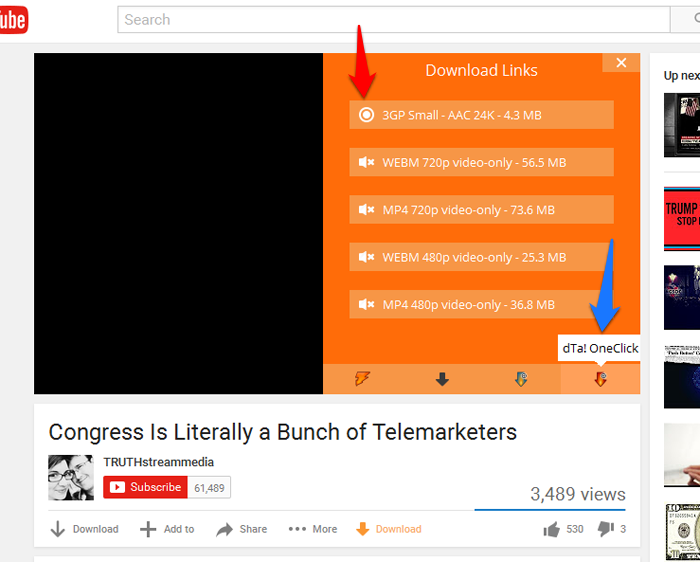
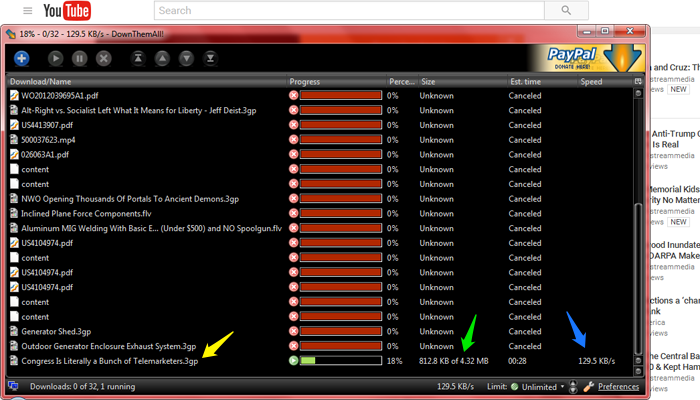
Immediately the Downthemall add-on window pops up, and shows me the download has started. It starts immediately because I have adjusted the preferences to do that. Notice at the bottom of the window, you have access to the preferences, and speed of downloading,
If you right click on the line, of the present download, you have typical options, such as pause, cancel, resume, etc.,
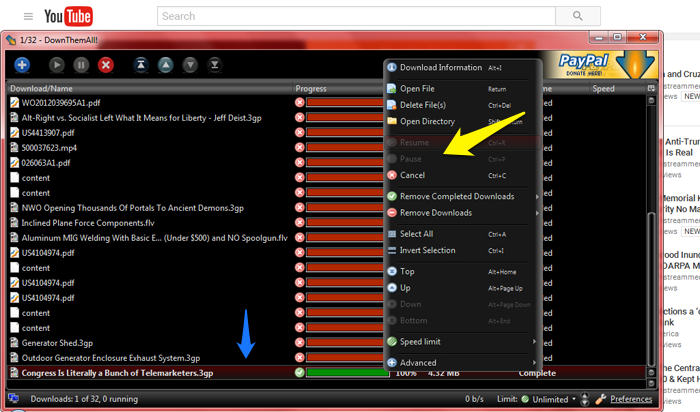
Note that pausing a download from youtube, and then resuming, will only work for a certain amount of time, after which youtube cancels it, and you would have to start all over again.
Hope this helps..